

DEPLOYMENT AUTOMATION / 01
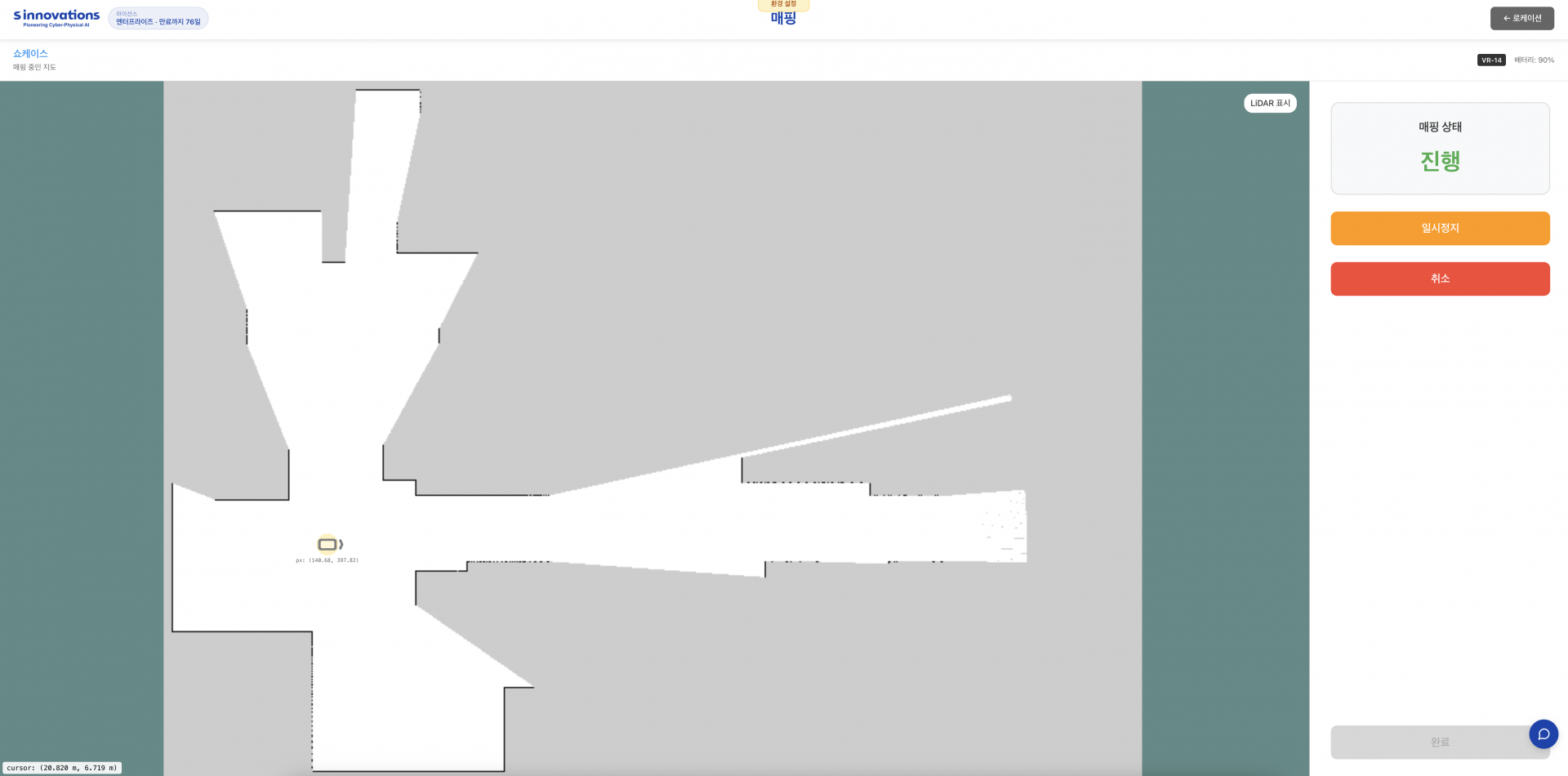
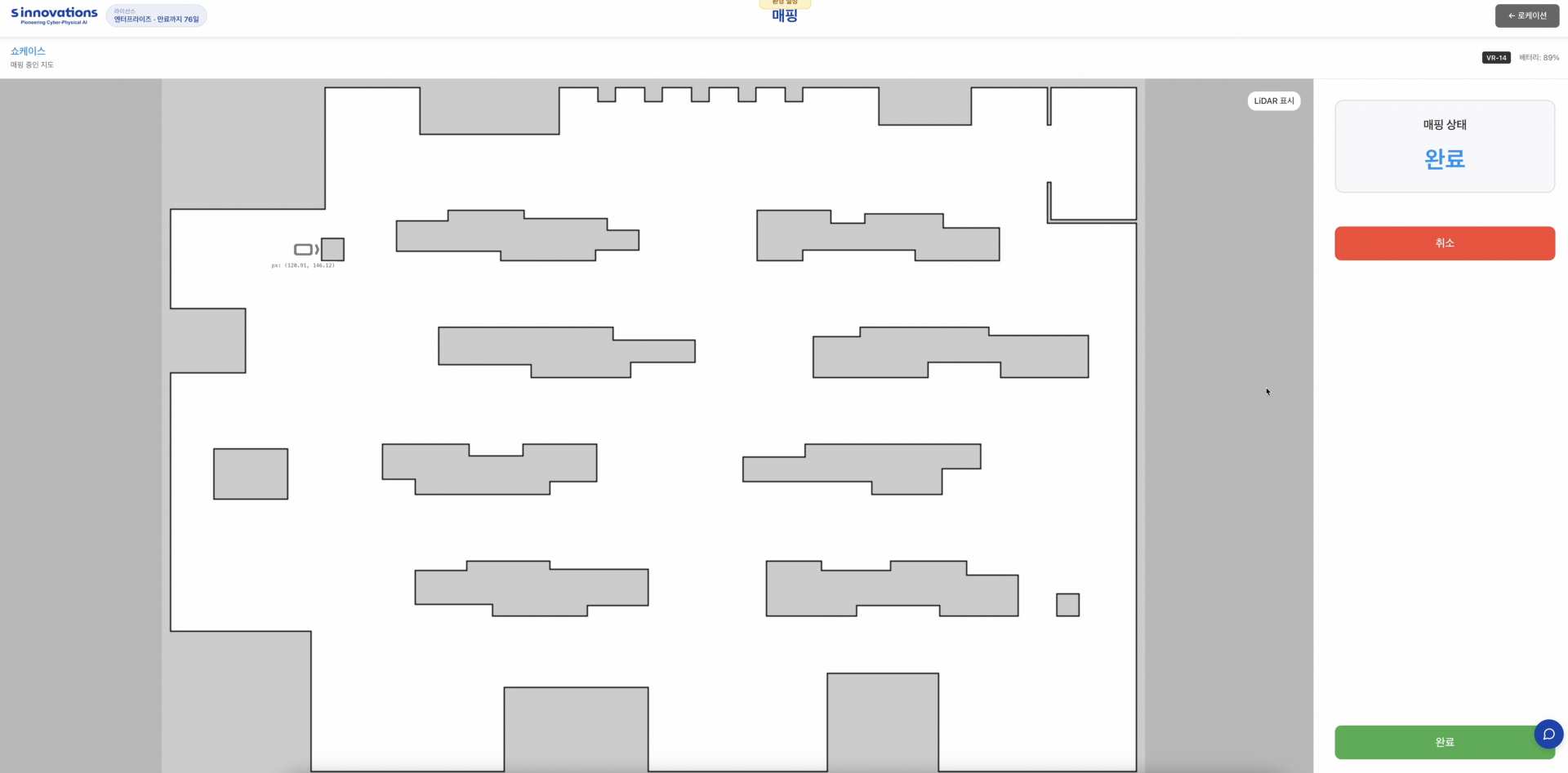
The robot explores the site and creates an initial map.
Reduce manual driving by specialists. Operational setup is a separate step.
Select a robot → Start auto mapping → Review and configure
MAINTENANCE AUTOMATION / 02
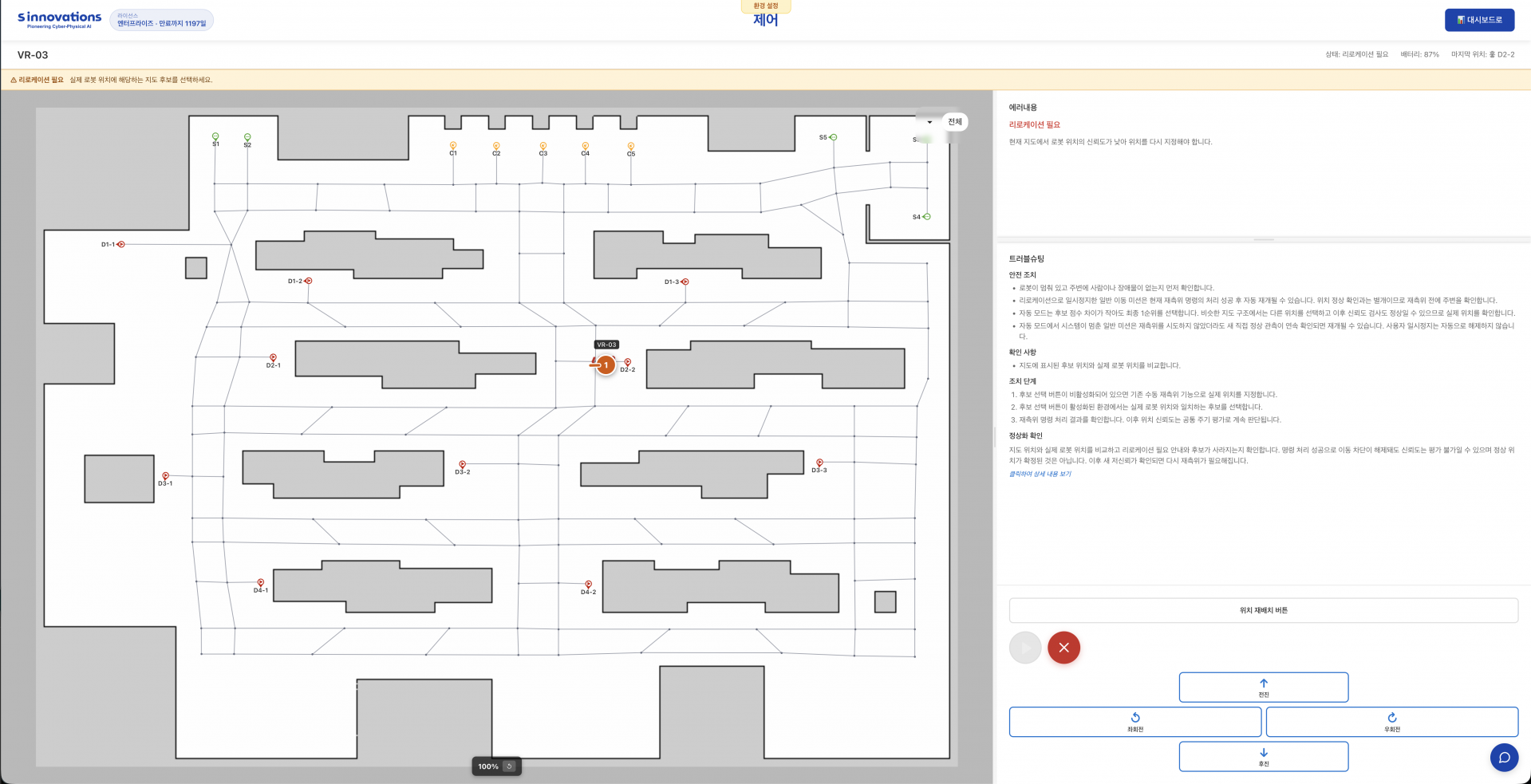
Detect localization loss and restore the robot’s position automatically.
Reduce the need for operators to reset its position manually.
Detect localization loss → Restore the position → Check status
MAINTENANCE AUTOMATION / 03
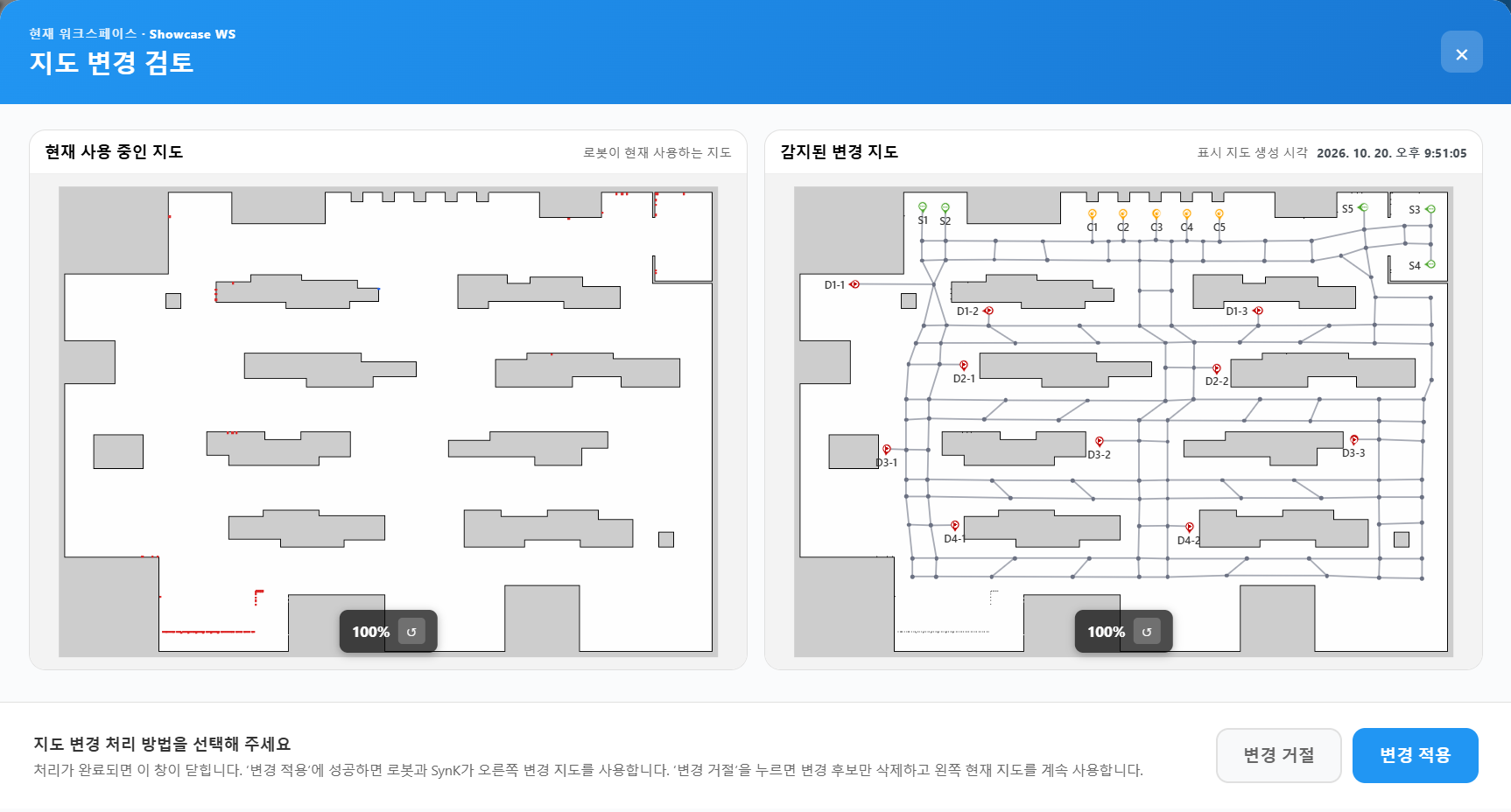
When the layout changes, SynK suggests a map update.
Changed areas are updated after an operator approves them.
Review changed areas → Approve the update → Update selected areas
MAINTENANCE AUTOMATION / 04
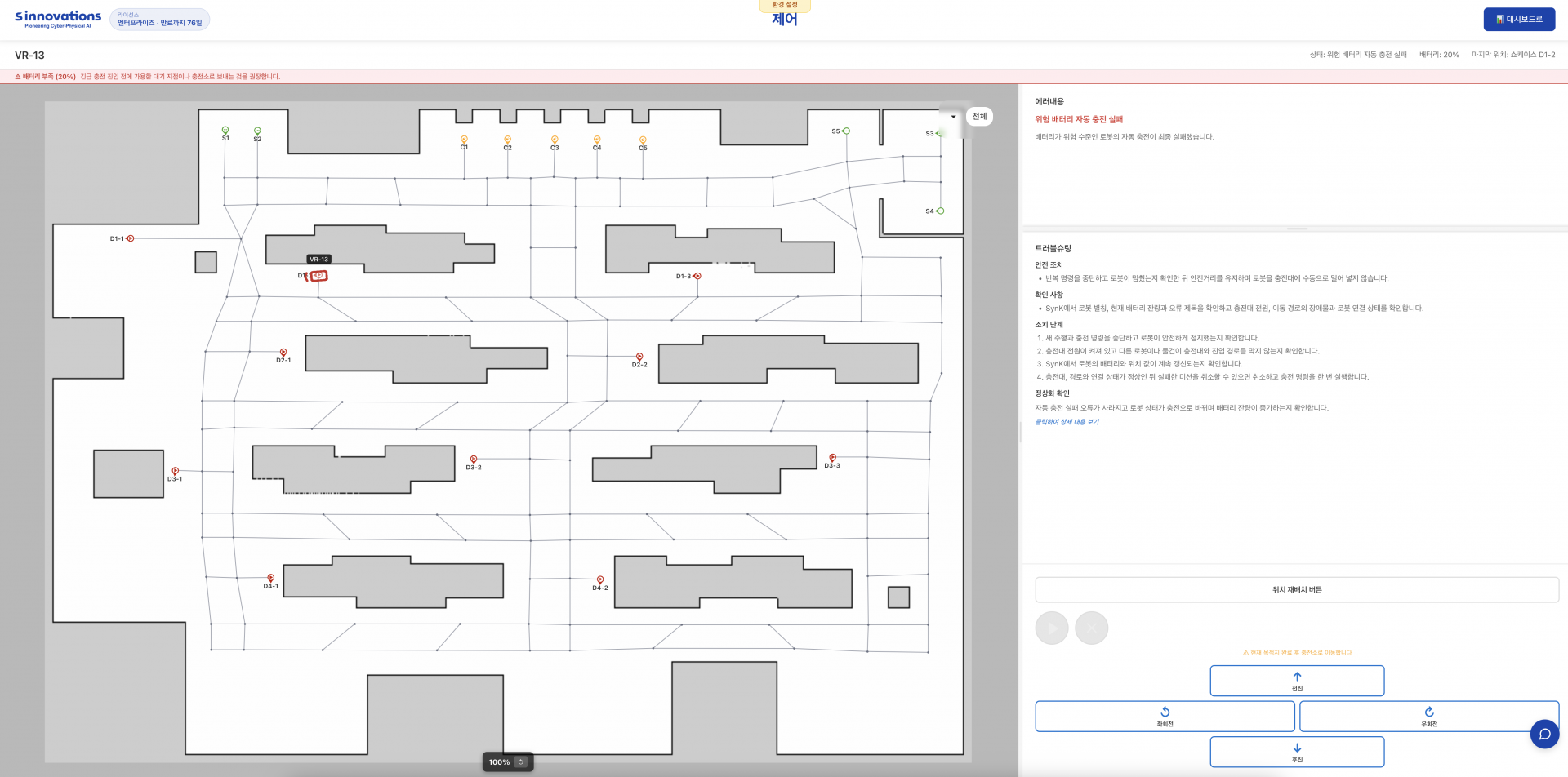
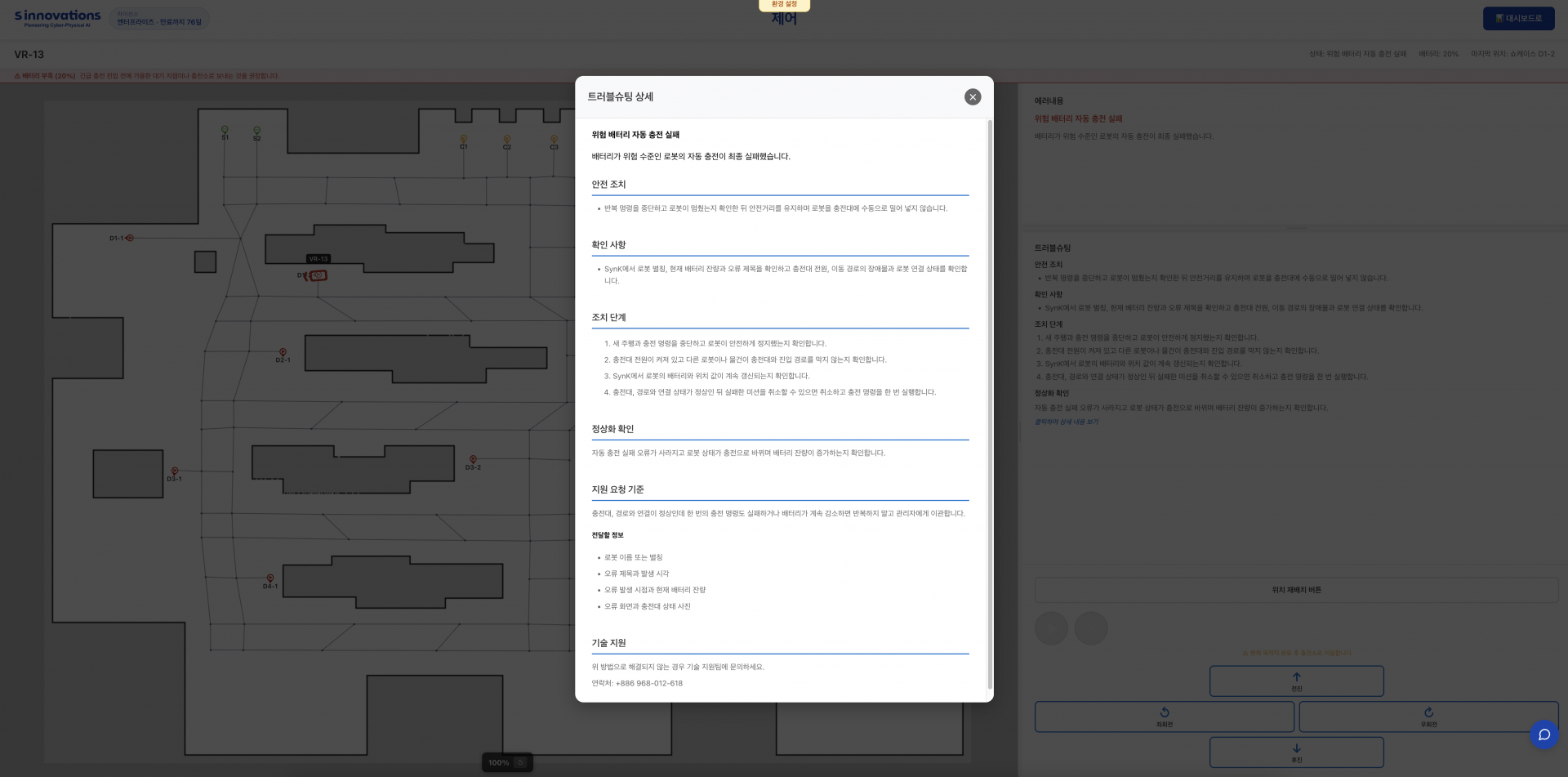
Find instructions for each error code in SynK.
Follow the steps to take the required action.
Check the error code → Read the guide → Take action on site
MAINTENANCE AUTOMATION / 05
Manage charging by battery level and operating hours.
Eligible robots yield their chargers when capacity is limited.
Battery thresholds · Time policies · Charger yielding
View supported conditions +Compare with Low Battery, Critical and Yield thresholds.
↓
Check whether it is peak time or a normal charging period.
↓
Continue tasks, return to charge or yield a charger.
| Battery status | Peak time | Normal charging period |
|---|---|---|
| Below Low Battery threshold | Continue tasks. No automatic return to charge. | Return to charge in the order robots reach the threshold. |
| Critical battery threshold reached | Stop assigning new tasks. Charge after the current task ends. | Stop assigning new tasks. Charge after the current task ends. |
| Charging complete | — | Return to standby automatically after reaching 100% charge. |
When chargers are limited, robots that meet the Yield threshold free a charger for robots below the Low Battery threshold.
Policy diagram based on DemoKit Manual v1.2, Chapter 8 (p.23). Not an actual settings screen.
INTEGRATION AUTOMATION / 06
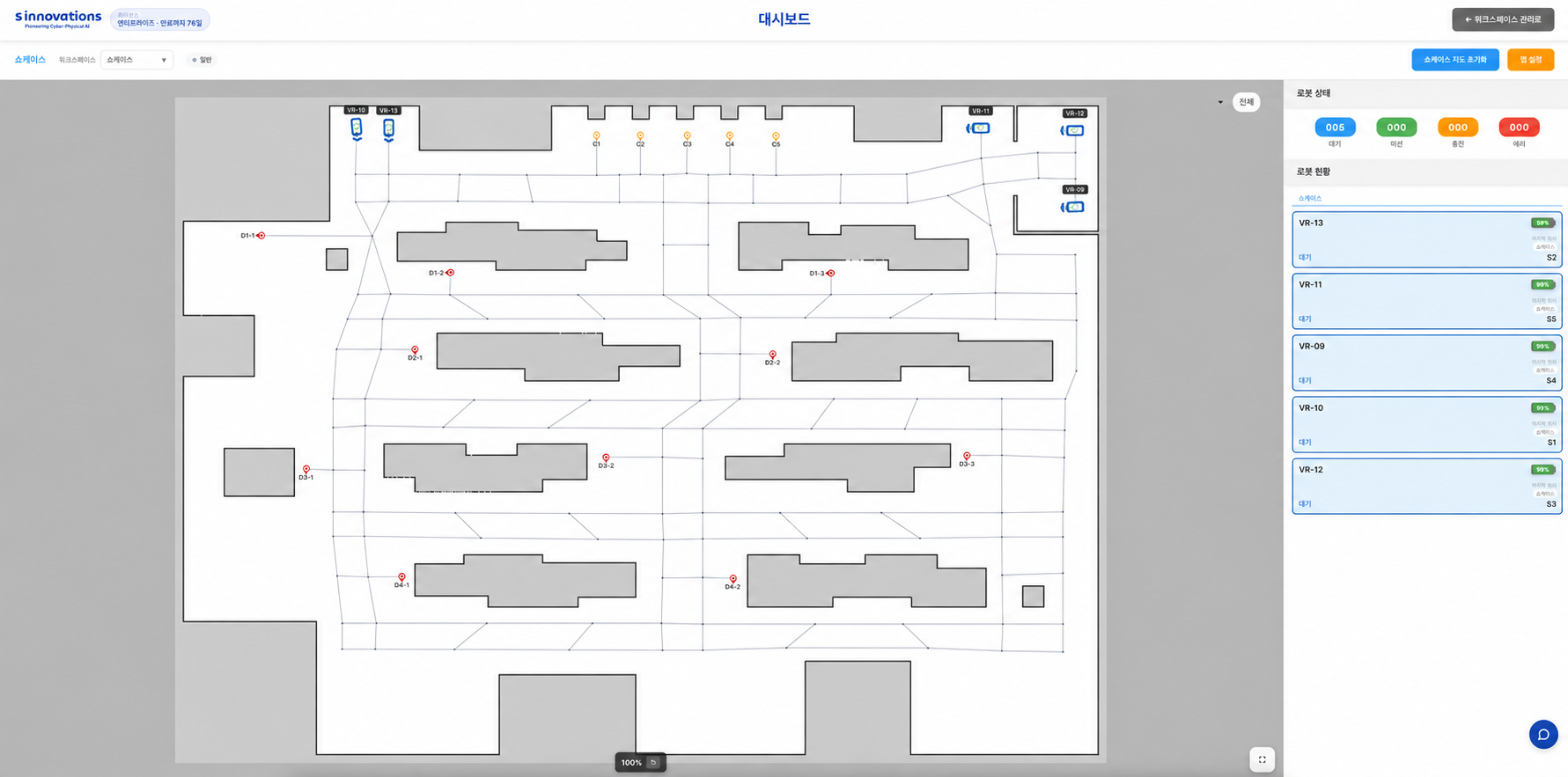
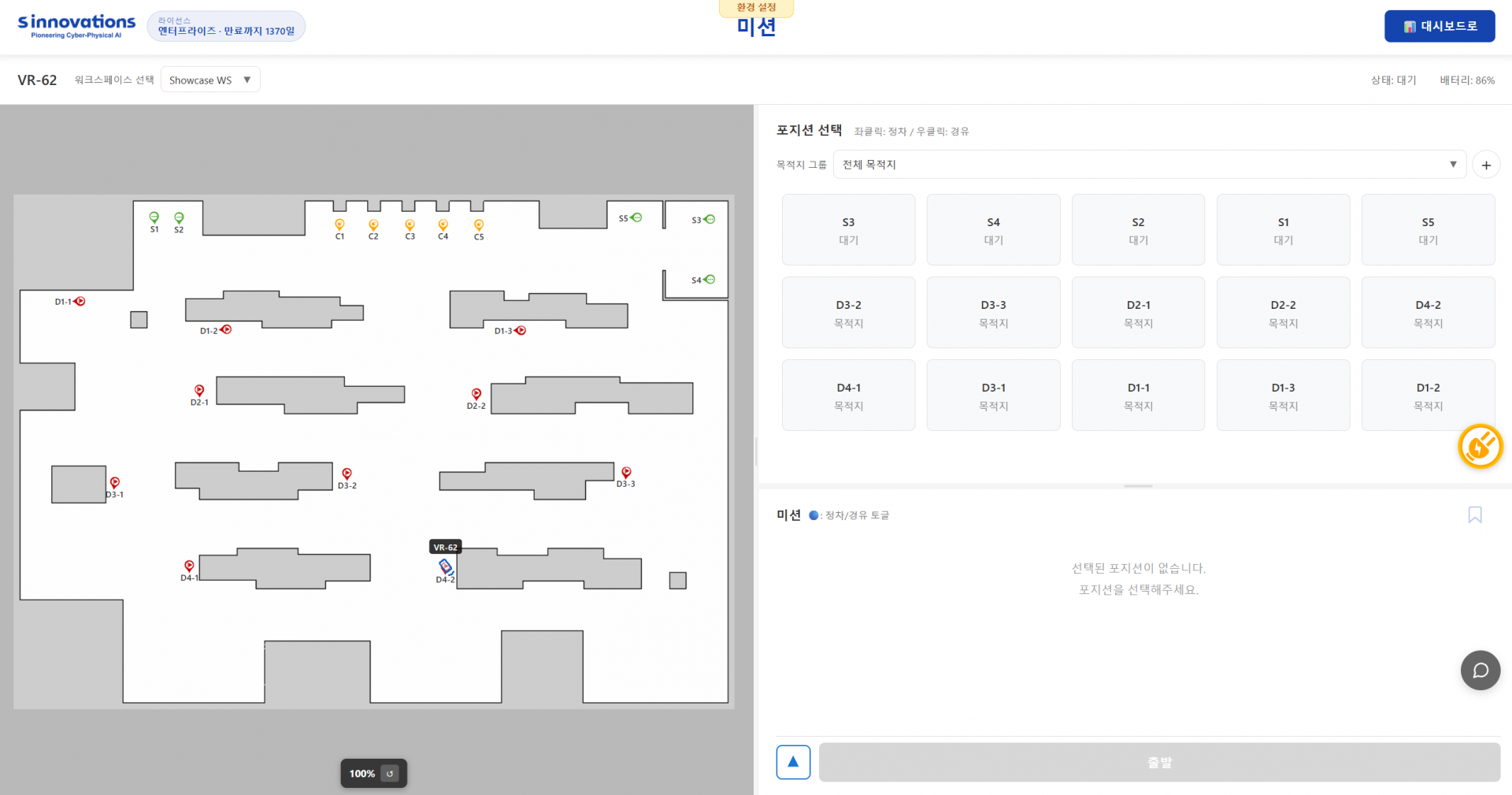
See connected robots’ positions, status, battery levels and tasks in one place.
No switching between tools for supported brands and robot types.
Connect robots → Review fleet information → Operate and control
GET STARTED
Tell us the brands, models and current management tools.
Review the space, layout, chargers and workflows.
Define the features and integration scope together.
LET’S TALK
Tell us which robots you use or plan to deploy and the work you want to improve.